
Website Audit Checklist: 20 Checks for Small Business Sites
Your website can look fine and still lose you work every week. A form that stopped sending emails, a phone number that isn’t tappable, a page Google never indexed, or a plugin that hasn’t been updated in a year won’t show up until you go looking.
This website audit checklist gives you 20 checks you can run yourself in about an hour, using free tools from Google and a phone. Each check tells you what to look at, what “pass” looks like, and what to do if it fails. No technical background needed.
What is a website audit?
A website audit is a structured check of how well your site is doing its job. For a small business, that job is simple: get found on Google, load fast, look trustworthy, and turn visitors into calls, quote requests, and bookings.
Big agencies sell audits that run to 80 pages of technical SEO. You don’t need that. Most small business sites fail on a handful of basic things, and those are the ones that cost you leads. This checklist focuses on those.
How to do a website audit in about an hour
Set aside an hour, open your site on a laptop and on your phone, and work through the five groups below in order. They’re ranked by how directly they affect your leads.
- Leads and first impressions (checks 1 to 4): Can people contact you, and do you hear about it when they do?
- Google visibility (checks 5 to 9): Can people find you?
- Speed and mobile (checks 10 to 12): Does the site work on the device most people use to find a local business?
- Security and ownership (checks 13 to 16): Is the site safe, and do you control it?
- Content and trust (checks 17 to 20): Does it give people a reason to choose you?
Mark each check as Pass, Fix, or Not sure. Use the table below as your website audit template; copy it into a spreadsheet if that’s easier.
| # | Check | Free tool | Pass if |
|---|---|---|---|
| 1 | 5-second test | A friend or customer | They can say what you do and where within 5 seconds |
| 2 | Tap-to-call and clear call to action | Your phone | Phone number is tappable; every page has a next step |
| 3 | Contact form works | Your phone and inbox | Test message arrives within minutes |
| 4 | Leads are tracked | Google Analytics 4 | Form sends and calls are set up as key events |
| 5 | Site shows on Google | Google search | site:yourdomain.com returns your main pages |
| 6 | Key pages are indexed | Google Search Console | Home, service, and contact pages are indexed |
| 7 | Unique page titles | Google search results | Every page has its own descriptive title |
| 8 | Meta descriptions | Google search results or your SEO plugin | Each key page has its own description |
| 9 | Business details match | Google Business Profile | Name, address, phone, and hours match your site |
| 10 | Core Web Vitals | PageSpeed Insights | LCP 2.5s or less, INP 200ms or less, CLS 0.1 or less |
| 11 | Mobile shows full content | Your phone | Nothing important is missing on mobile |
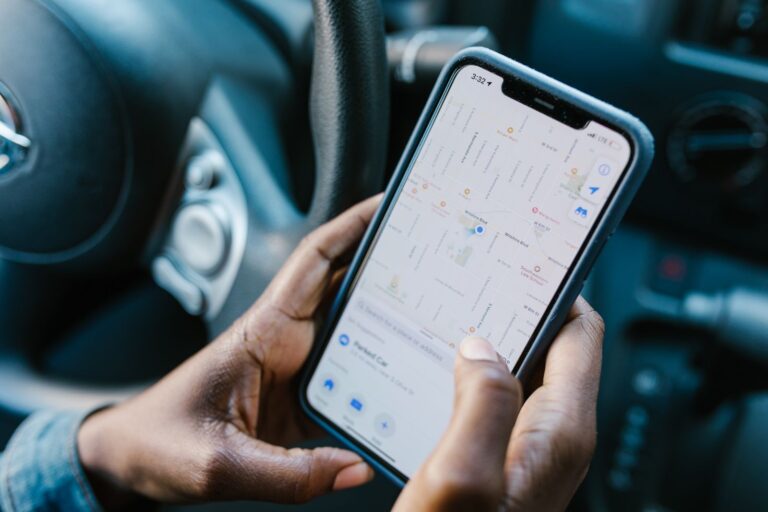
| 12 | Real-phone test | Your phone | Menus, buttons, and forms work with a thumb |
| 13 | HTTPS everywhere | Your browser | Padlock on every page, no “Not secure” warning |
| 14 | Software is up to date | WordPress dashboard (or your platform) | Core, theme, and plugins all current |
| 15 | Backups exist and restore | Your host or backup plugin | A recent backup you know how to restore |
| 16 | You own your domain and logins | Your registrar | Domain in your name, admin login in your hands |
| 17 | Reviews and testimonials are recent | Your site and Google profile | Reviews from the last three months are visible |
| 18 | Content is current | Your own eyes | Prices, services, team, and dates are correct |
| 19 | No broken links or pages | Search Console, or click through | No 404 errors on links you control |
| 20 | Text is readable | A free contrast checker | Body text contrast at least 4.5:1 |
Part 1: Leads and first impressions
Start here. If people can’t reach you, nothing else on this list matters much. If your site gets visits but the phone stays quiet, our guide to why a website isn’t getting inquiries goes deeper on this part.
1. Run the 5-second test
Show your homepage to someone who doesn’t know your business for five seconds, then close it. Ask them what you do, where you work, and how to contact you.
Pass: They get all three right. Fix: Rewrite the top of your homepage so the headline says what you do and where (“Emergency plumbing in Tampa” beats “Quality you can trust”), with your phone number and one main button right beside it.
2. Check tap-to-call and your call to action
On your phone, tap your phone number in the header. It should open the dialer. Then scroll to the bottom of every main page and ask: what am I supposed to do next?
Pass: The number is tappable on every page, and every page ends with a clear next step such as “Get a free quote” or “Book a visit.” Fix: Make the number a click-to-call link and add one call to action per page. One clear ask works better than five competing buttons.
3. Test every contact form
This is the check that most often turns up a real problem. Forms break quietly after plugin updates, email setting changes, or a host move, and nobody notices because the site still looks fine.
Fill in each form on your site with a real email address and phone number. Note the time.
Pass: The message reaches your inbox (not spam) within a few minutes, and the visitor sees a thank-you message. Fix: Check the form’s notification email address, your spam folder, and whether your site sends mail through a proper email service rather than the server’s built-in mail.
4. Make sure you can count your leads
If you can’t say how many calls and form fills your website brought in last month, you can’t tell whether any change you make is working.
In Google Analytics 4, actions that matter to your business can be marked as key events, such as a form submission or a tap on your phone number. You mark an existing event by clicking the star next to it under Admin, then Events.
Pass: Form submissions and phone taps are tracked as key events, and you’ve looked at the numbers in the last month. Fix: Set up those events, or ask whoever manages your site to do it. Our guide to building a lead generation website covers tracking in more detail.
Part 2: Google visibility
These checks tell you whether Google can find, index, and properly describe your pages.
5. Search for your own site
Type site:yourdomain.com into Google (with your real domain). This shows a sample of the pages Google has indexed.
Pass: Your homepage, main service pages, and contact page appear. Fix: If nothing shows up, or key pages are missing, work through the next check, then look at common causes such as a “discourage search engines” setting left on after launch. Our guide to why your website isn’t showing up on Google walks through nine causes.
6. Check Page indexing in Google Search Console
Google Search Console is free and shows how Google sees your site. Its Page indexing report shows how many of your URLs Google has crawled and indexed, and why others were left out.
Don’t panic if many URLs show as not indexed. Google says you shouldn’t expect every URL to be indexed, only your canonical (main) pages. What matters is that your key pages are in.
Pass: Home, service, location, and contact pages are indexed. Fix: Use the URL Inspection tool on any key page that isn’t, and read the reason it gives.
7. Give every page its own title
Your page title is usually the blue headline people click in Google. Google’s title link guidance asks for distinct, descriptive text on each page and warns against vague titles like “Home.” There’s no fixed character limit, but Google cuts long titles to fit the screen, so put the important words first.
Pass: Every main page has a unique title that names the service and, for local pages, the city. Fix: Rewrite titles like “Home | Smith Co” to something like “Roof Repair in Dallas, TX | Smith Roofing.”
8. Write unique meta descriptions
The meta description is the short summary that can appear under your title in search results. Google’s snippet guidance says identical or similar descriptions on every page aren’t helpful. Google often builds the snippet from your page text instead, but a good description gives it a better option.
Pass: Each key page has its own description that says what the page offers and why to click. Fix: Add them in your SEO plugin, one page at a time, starting with your homepage and top services.
9. Match your website and Google Business Profile
For local businesses, your Google Business Profile often brings in more calls than your website does. Google’s Business Profile guidelines ask you to represent your business the way it’s recognized in the real world, with an accurate address or service area, a phone number for your location, and your regular hours.
Pass: Business name, address, phone, and hours are the same on your site, your profile, and your main directory listings. Fix: Update whichever is out of date. If your site uses LocalBusiness structured data, check that it carries the same name and address, the two properties Google requires.
Part 3: Speed and mobile
A slow or awkward mobile site loses people before they read a word.
10. Test your Core Web Vitals
Run your homepage and your top service page through Google’s free PageSpeed Insights. Look at the three Core Web Vitals:
| Metric | What it measures | Good score |
|---|---|---|
| Largest Contentful Paint (LCP) | How fast the main content loads | 2.5 seconds or less |
| Interaction to Next Paint (INP) | How fast the page responds to a tap or click | 200 milliseconds or less |
| Cumulative Layout Shift (CLS) | How much the page jumps around while loading | 0.1 or less |
Google measures these at the 75th percentile of real visits, split by mobile and desktop, so the mobile score is the one to watch.
Pass: All three are in the green on mobile. Fix: The usual culprits on small business sites are oversized images, too many plugins, heavy sliders, and cheap shared hosting.

11. Check that mobile shows the full content
Google uses the mobile version of your site for indexing and ranking. Its mobile-first indexing guidance says your mobile site should contain the same content as your desktop site.
Pass: Service details, reviews, and contact info that appear on desktop also appear on mobile. Fix: If a theme hides sections on phones, show them in tabs or accordions instead of removing them.
12. Use the site on a real phone
In October 2026, mobile accounted for about 45% of US web traffic and desktop about 52%, according to StatCounter. For local services found in a hurry, the share on your own site may be higher; check your analytics.
Open your menu, tap every main button, and fill in a form with your thumb.
Pass: Nothing is too small to tap, nothing runs off the screen, and no pop-up blocks the page. Fix: Larger buttons, a simpler menu, and fewer form fields fix most problems.
Part 4: Security and ownership
These checks protect what you’ve already paid for. Most owners skip them until something goes wrong.
13. Confirm HTTPS on every page
Look for the padlock (or the site settings icon) beside your address in the browser, on your homepage and inside your forms. Then type your address starting with http:// and see whether it switches to https://.
This matters more now. Google announced that Chrome 154 would turn on “Always Use Secure Connections” by default for public sites, which means visitors get a warning before an HTTP page loads (SecurityWeek).
Pass: Every page loads on https:// with no warning, and http:// redirects automatically. Fix: Ask your host to install a free SSL certificate and force HTTPS sitewide.
14. Check that your software is up to date
If your site runs on WordPress, log in and look at the Updates screen. The risk sits mostly in plugins. Patchstack’s State of WordPress Security in 2026 counted 11,334 new WordPress vulnerabilities in 2025, about 91% of them in plugins and 9% in themes. It found that 46% had no fix from the developer by the time they were made public, and roughly half of high-impact ones were exploited within 24 hours. WordPress core needs attention too: see our note on the WordPress 7.1.4 security update.
Pass: WordPress core, your theme, and every plugin are current, and you’ve deleted plugins you don’t use. Fix: Update (after taking a backup), remove abandoned plugins, and decide who checks this every month. If that’s nobody, a website maintenance plan covers it. See what that typically costs in our website maintenance cost guide.
15. Make sure backups exist and actually restore
Ask your host, or check your backup plugin: when was the last backup, where is it stored, and has anyone ever restored one?
Pass: Automatic backups run at least weekly (daily if you update often), a copy is stored somewhere other than your web server, and someone knows how to restore it. Fix: Turn on automatic off-site backups before you make any other change on this list.
16. Check that you own your domain and logins
This is the check that causes the most pain when it fails. Log in to your domain registrar and confirm the domain is registered in your name or your company’s name, with an email address you control, and that auto-renew is on.
Pass: You own the domain, you have an administrator login to your website and hosting, and you know when everything renews. Fix: If a former designer or agency holds any of these, ask for them to be transferred to you now, while the relationship is still friendly.
Part 5: Content and trust
The last group decides whether a visitor picks you over the next result.
17. Show recent reviews and testimonials
BrightLocal’s 2026 Local Consumer Review Survey of 1,002 US adults found that 85% are more likely to use a business after reading positive reviews, and 74% look for reviews written in the last three months, according to PinMeTo’s summary. Old testimonials from 2019 don’t do much.
Pass: Your site shows real, recent reviews with names (and photos of the work where you can), and links to your Google reviews. Fix: Ask your last 10 happy customers for a Google review, then add the best ones to your homepage and service pages.
18. Make sure your content is current
Read your main pages as a stranger would. Look for old prices, services you no longer offer, staff who’ve left, expired offers, “Copyright 2021” in the footer, and a blog whose last post is years old. This is the heart of a website content audit.
Pass: Everything on the site is true today. Fix: Update or delete. A short, accurate page is better than a long, outdated one.
19. Find broken links and missing pages
Click through your menu, footer, and buttons. In Search Console, the Page indexing report also lists URLs that return a “Not found (404)” error.
Pass: Every link you control goes where it should. Fix: Correct the link, or redirect the old address to the closest live page.
20. Check that your text is easy to read
Light gray text on white, or white text on a pale or bright color, is hard to read for many people, especially outdoors on a phone. The W3C’s WCAG 2.2 contrast guidance sets a minimum ratio of 4.5:1 for normal text and 3:1 for large text (about 24px, or 18.5px bold).
Pass: Body text and button text meet 4.5:1 in a free contrast checker. Fix: Darken the text or the background. It’s one of the cheapest accessibility fixes you can make. For a fuller list, see our website ADA compliance checklist.
What to do with your results
Count your “Fix” marks, then sort them:
| Priority | What goes here | When |
|---|---|---|
| Fix now | Broken forms (3), no HTTPS (13), no backups (15), domain not in your name (16) | This week |
| Fix this month | Tracking (4), indexing (5 to 6), titles and descriptions (7 to 8), out-of-date software (14), wrong business details (9, 18) | Next 30 days |
| Plan for | Slow mobile scores (10), poor mobile layout (11 to 12), weak trust content (17), low contrast (20) | Next update or redesign |
If most of your fails are in the “plan for” row, patching may cost more than starting fresh. A slow theme, a layout that breaks on phones, and a homepage that doesn’t say what you do are usually signs the site needs a rebuild rather than a tune-up. Our website redesign cost guide shows what that typically runs, our website redesign SEO checklist explains how to keep your rankings through it, and our guide to small business website design covers what a new site should include.
Run this audit at least once a year, and again after any big change: a new theme, a host move, or a new contact form.
Frequently asked questions
What should a website audit checklist include?
For a small business, it should cover five areas: whether people can contact you (and you get the message), whether Google can find and index your pages, how fast and usable the site is on a phone, whether the site is secure and in your control, and whether the content is current and trustworthy.
How often should I audit my website?
At least once a year, and after any major change such as a new theme, a hosting move, a new form, or a redesign. The form test (check 3) is worth doing every month, because forms can break without warning.
Can I do a website audit myself?
Yes. Every check in this list uses free tools: Google Search, Google Search Console, PageSpeed Insights, Google Analytics 4, your phone, and a contrast checker. You may need help to fix some problems, but you can find them yourself.
What’s the difference between a website audit and an SEO audit?
An SEO audit looks only at search visibility, often in deep technical detail. A website audit is broader. It also covers leads, speed, security, ownership, and trust, which matter to a small business as much as rankings do.
How long does a website audit take?
This checklist takes about an hour for a typical 5 to 15 page small business site. A full technical audit of a large site can take days.
Are free website audit tools enough?
For most small business sites, yes. Automated tools are good at spotting slow pages, broken links, and missing titles. They can’t tell you whether your homepage makes sense to a customer or whether your form emails reach you, so do the manual checks too.
Get a free homepage design
Failed more checks than you’d like? See what your site could look like before you spend a cent. Crazy Media Design will design a new homepage for your business for free. If you go ahead, a 5-page site starts at $750, takes about two weeks, and includes unlimited revisions.
No obligation. Don’t love it? You don’t pay a thing.
Sources
- web.dev, Web Vitals
- Google Search Central, Influencing your title links
- Google Search Central, Control your snippets in search results
- Google Search Central, Mobile-first indexing best practices
- Google Search Central, Local business structured data
- Search Console Help, Page indexing report
- Google Analytics Help, Key events
- Google Business Profile Help, Guidelines for representing your business
- Patchstack, State of WordPress Security in 2026
- StatCounter, Desktop vs mobile vs tablet market share, United States (October 2026)
- PinMeTo, BrightLocal Local Consumer Review Survey 2026 summary (June 25, 2026)
- SecurityWeek, Chrome to turn HTTPS on by default for public sites (October 29, 2025)
- W3C, Understanding WCAG 2.2: Contrast (Minimum)
Need a website that brings in inquiries?
Get a professional website, live in two weeks
We build fast, mobile-friendly websites for local businesses, planned around what you need your website to do. Five pages from $750, with unlimited revisions until you approve.

You’ll talk directly with Govind,
founder of Crazy Media Design.
$750
Five-page website · starting price
- Delivered in two weeks
- Unlimited revisions
- Mobile-friendly and fast
- You own your website